

Frequently Asked Questions
The frequently asked questions below have been grouped into the categories of everyone, faculty, and students to assist in providing specific direction for each group's available resources and support. We will continue updating this page throughout the transition. For questions not addressed here or for additional information, please contact citl@tntech.edu.
For Everyone
- Why Switch?
Tennessee Tech has always been a university where teaching matters, where relationships with students come first, and where we are intentional about aligning our tools with our mission. As part of that commitment, we are excited to announce that Tennessee Tech will transition from D2L/iLearn to Canvas as our official learning management system by Fall 2026.
This transition is not about technology for technology’s sake. It is about ensuring that our instructional infrastructure supports accessibility, consistency, and student success while giving faculty modern, reliable tools to do their best work. This decision is directly aligned with our strategic planning efforts and our continued focus on a student-first learning experience with innovation in all we do. Canvas allows us to better support the kind of teaching and learning that defines Tennessee Tech through the advantages listed below. We are confident that this transition will strengthen our instructional environment and further our shared commitment to excellence at Tennessee Tech.
1 Intuitive Interface for Students
2 Improved Accessibility Support
3 Stronger Integrations
4 Flexible Design
5 Advanced Analytics and Reporting
6 Streamlined Course Migration and Support
- What is the Transition Timeline?
View the full transition timeline as well as available training and support below.
- How do I Get Training and Support?
There are several methods for receiving training and support throughout this process. The CITL website has resource pages dedicated to faculty and students, workshops and workshop recordings, a self-paced training with Canvas, and individual support available through bookings. Links to each resource can be found below.
- What do I do if I don't have a Canvas Sandbox?
If you are a faculty member or a GA/TA who does not have a Sandbox, please complete the form below.
For Faculty
Spring 2027 Courses
- Where can I find my Spring 2027 courses?
Spring 2027 course shells are now available in the Unpublished section of your Canvas Dashboard. Courses will appear for faculty listed as instructors or co-instructors in Course Dog.
If an instructor assignment changes, update the information in Course Dog first, then contact CITL at citl@tntech.edu.
- Why do I see Master courses in my Canvas Dashboard?
Assisted migrations with K16 are complete, and faculty have been enrolled in their remaining migrated courses. These migrated courses appear as Master courses in the Unpublished section of the Canvas Dashboard. You may see duplicate course shells because Fall 2026 course requests were originally copied into fall shells.
Please NoteSome courses were migrated with previous dates and may appear within your previous courses in Canvas instead of within the Master Unpublished section. If you cannot find your requested migrated content, please contact citl@tntech.edu.
- What if I no longer need a migrated course?
If you no longer need access to a migrated Master course, submit the Faculty Unenroll Request form. Other faculty who no longer need access to your courses may also submit the form.
- What do I do if D2L course content is missing from my migrated courses?
Review your unpublished Canvas courses alongside your D2L courses. Requests for missing D2L course content should be submitted by Friday, October 30. This deadline does not include Spring 2027 courses that were not previously requested for migration.
- How do I copy my Fall 2026 Canvas course into my Spring 2027 course?
Use Canvas's course copy process to copy content from your Fall 2026 Canvas course into your Spring 2027 shell. Spring shells already include an Instructor Module and Module 0. After copying your content, review your modules and make sure the correct Module 0 is published for students.
- How do I use content that was migrated for my Spring 2027 course?
If you requested a Spring course migration before the deadline, the migrated content is available as a Master course in the Unpublished section of your Canvas Dashboard, or within your previous courses in the semester the original course was offered in D2L. You can review and clean up your content in the Master course before copying it to the Spring shell, or copy the content first and make your updates in the Spring shell.
Please note, migrated content is not automatically added to your Spring 2027 course shell.
- What if I did not request migration of my Spring 2027 course?
If you did not submit a migration request for your Spring course, you will need to move your D2L content manually. The CITL recommends scheduling an appointment with an Instructional Designer to review your content and determine the best way to move it into Canvas for Spring 2027.
- Do I need to publish my Spring 2027 course?
No. Spring 2027 courses will be published automatically after the fall semester ends, so you do not need to publish the course yourself. While your course is unpublished, you can still use Student View and publish individual modules and content to establish course requirements or test settings before the term begins.
- Where can I get help preparing my Spring 2027 course?
Faculty can use the Faculty Training course in Canvas, attend upcoming or review archived CITL workshops, schedule an individual consultation, or email CITL for additional support.
General Questions
- What Happens to My Course Content?
Fall 2026
The CITL will managed migration of course content for Fall 2026 from D2L to Canvas with the assistance of a third party, K16, for the faculty. To prepare for this migration, we recommended faculty update their course files to ensure they meet Title II WCAG 2.1 guidelines and remove any unnecessary content that may no longer be needed. Fall migration requests have been completed at this time.
Spring 2027
Spring migration requests have been completed at this time. Faculty still needing assistance with migrating content for Spring 2027 can contact citl@tntech.edu or schedule a Spring 2027 consultation with their college/school's Instructional Designer through the CITL Consultations page.
Previous Courses and Additional Resources
For course content needed beyond Spring 2027, faculty may still submit a Course Migration Request Form. Our team will work with Canvas representatives to migrate the requested content.
The deadline to submit a Course Migration Request Form is October 30, 2026. This deadline will provide our team with time to export the requested materials and confirm that they were imported successfully before our access to iLearn/D2L ends.
Important Dates
- October 30, 2026: Deadline to submit a Course Migration Request Form
- December 10, 2026: Deadline to complete a manual export if you may need assistance from the CITL
- December 31, 2026: Tennessee Tech’s access to iLearn/D2L ends
We highly recommend submitting a migration request by October 30 or following the manual archiving instructions in Module 5.4.1 before the end of the semester on December 10. Once the university closes for winter break, offices will not reopen until after our access to D2L iLearn has ended. The CITL will continue to provide support for faculty organizing imported files in the spring.
- What Training and Support is Available?
A faculty resource website as well as a self-paced training within Canvas are available on the CITL website. In addition, we will continue to host workshops and faculty can schedule individual consultations using our bookings page linked below.
- What LTI Integrations are available in Canvas?
LTI Integrations
We are in the process of taking inventory of all LTI integrations within D2L and setting up the integrations within Canvas. A current list of LTIs can be found below.
- What are the differences between Canvas and D2L?
Canvas and D2L Feature Chart
View our Canvas and D2L Feature Chart to learn about the features and tools available in Canvas.
Migration
- How do I review my content?
Faculty Content Review
After your content has been migrated to your course, follow the steps outlined in the Content Review webpage to begin preparing your course for the upcoming semester.
- How do I copy content from one course to another in Canvas?
Copy Content in Canvas
Within Canvas, content can be copied from course to course by using the Import tool. You can copy entire courses, modules, or pages. Learn more in the Instructure Resource below.
- How do I add my YuJa videos in Canvas?
YuJa Media in Canvas
YuJa Media is now available in Canvas. Faculty can access YuJa Media from the white course navigation inside their course or Sandbox. Watch the video below to learn how to integrate YuJa videos into your course.
NOTE: Videos created in D2L and uploaded to YuJa Media should be available within the YuJa Media library in Canvas.
- How do I request a course combine in Canvas?
- How do I add a co-instructor to my Canvas course?
- How do I add my Graduate/Teaching Assistant to my course in Canvas?
Add Graduate or Teaching Assistant in Canvas
Canvas Requests are now available in TDX.
For Students
- Where will my classes be?
Courses in Canvas
All fall courses will be conducted in Canvas. You can login through the red C icon in TechExpress or using the link below.
- How do I learn about Canvas?
Student Training
A self-enroll asynchronous student training is available within Canvas. This training covers the basic use and navigation of Canvas from a student perspective and provides resources and information on how to use Canvas for your courses. You can self-enroll in the training using the link below.
Self-Enroll in Student Training
Student Resource Page
We have also created a resource page focused on students and their use of the system. This page provides instructions on how to view grades, submit assignments, set up your Dashboard, and more. View the Student Resource page using the link below.
- How do I Find my Courses?
Find Your Courses in Canvas
To find your courses in Canvas:
-
Go to https://canvas.tntech.edu/ and log in with your Tennessee Tech credentials
OR click on the Canvas icon in the Tech Express QuickLinks.

-
In the purple general navigation bar, click on Courses and select All Courses
.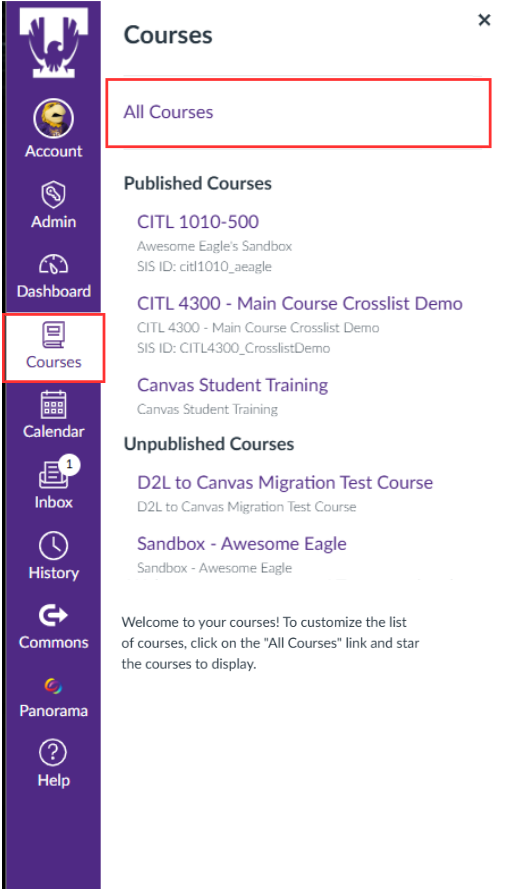
All the courses you are registered in and that have a canvas course shell will be listed here. Favorite Courses will be at the top; active and past enrollment courses will be below.
For more information, please visit Canvas-Student Resources on the CITL website.
-
- Why can't I see my course?
Why Can't I See My Courses?
Please make sure that you are viewing your Dashboard or the All-Courses list when you login to Canvas.
If you see your course but it is not the correct section, it is possible that your instructor has combined several sections together in Canvas. This is especially common with 4000/5000 level courses and lab sections. Please check your syllabus or ask your professor if they have combined your course section.
If you still do not see your course, check if your situation fits one of those two current issues:
-
The course has a section beginning with R: this is a TNeCampus course and is not in Canvas. Please go to the TNeCampus Login page for more information or contact Amy Phillips if you have questions.
-
You have been purged (removed from the rosters). Please check your schedule on Eagle Online to see if your courses are purged. If so, you will need to contact the Registrar’s Office.
If none of those situations apply to you, please fill a Missing Class Request and CITL will assist you.
-
- Why am I seeing classes I am not registered for?
Why am I seeing classes I am not registered for?
If you see a course you registered in but it is not the correct section, it is possible that your instructor has combined several sections together in Canvas. This is especially common with 4000/5000 level courses and lab sections. Please check your syllabus or ask your professor if they have combined your course section.
If you see courses that you are not registered in (not even in another section), you can fill a course removal form to have this course removed from your dashboard.
If you see a course that you just dropped, please wait 48 hours before filling the course removal form. It can take time for the Canvas system to update and synchronize with the registrar's office.
NOTERemoving a course from Canvas is not dropping a course. If you wish to drop a class, please follow the instruction on the course registration page on the registrar's office's website.
- Where can I find my syllabus?
Course Syllabus
Look in the white course navigation under “Syllabus” or “Modules.” The location can vary by instructor.
- Why does my Canvas look different from my friend’s?
Canvas Layouts
Faculty have flexibility in Canvas. Courses may use Canvas for assignments, grades, discussions and quizzes—or mainly as a document repository.
- How do I submit an assignment?
Submit Assignments in Canvas
To submit an assignment:
- Open the specific assignment in Canvas, then click on Start Assignment.
- You will see the information page with the due date, submission instructions, and the number of attempts allowed. Click on New Attempt.
- Select the submission type (File Upload, Text Entry, Website URL, Media,...) if your instructor did not select a specific type of submission.
- Type your text or select a file or URL to submit.
- When you are ready to submit, click on Submit Assignment.
- After you have submitted your work, you will see information about your submission in the sidebar.
For more information or a step-by-step guide with pictures and a video, visit the Instructure guide “How do I submit an online assignment?”
You can also visit Canvas-Student Resources on the CITL website.
- How do I see upcoming due dates?
View Upcoming Due Dates
Use the Dashboard, To Do List, and Calendar to track deadlines across courses. Only assignments entered into Canvas by your instructor will appear there.
- How do I know my assignment was submitted?
Submitting an Assignment
When you open the specific assignment in Canvas, you should see the information about the assignment; due date, attempts, instructions. If you have already submitted the assignment or an attempt to the assignment, you will see the submission information in the Sidebar with the date of submission and a link to the submission details.
For more information or a step-by-step guide with pictures and a video, visit the Instructure guide “How do I submit an online assignment?"
You can also visit Canvas-Student Resources on the CITL website.
- Where do I see my grades?
View Grades in Canvas
Open the specific course in Canvas, then click on Grades in the white course navigation menu.
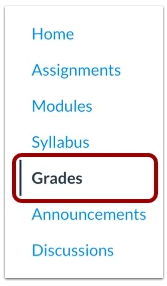
By default, grades are sorted chronologically by due dates. You can sort your grades by module, assignment name, or assignment group by clicking on the Arrange by menu.
For more information or a step-by-step guide with pictures and a video, visit the Instructure guide “How do I view my grades in a current course?”
You can also visit Canvas-Student Resources on the CITL website.
- Where is my instructor’s feedback?
View Instructor Feedback
Open your assignment submission to look for comments, annotations, or rubric scores. Feedback is available only after the instructor releases it.
- How do I get notifications?
Notification Settings
Canvas comes with default notification settings, but you can modify the setting to decide how and when you want your notifications. You can choose where you want to be notified (phone, email..), and pick one of the four notification frequency modes: immediate notification, daily summary, weekly summary, or no notification.
To check and/or modify your notification settings:
- Go into Canvas.
- Click on Account underneath the profile picture (upper left corner) in the purple general navigation.
- Select Notification in the newly opened menu.
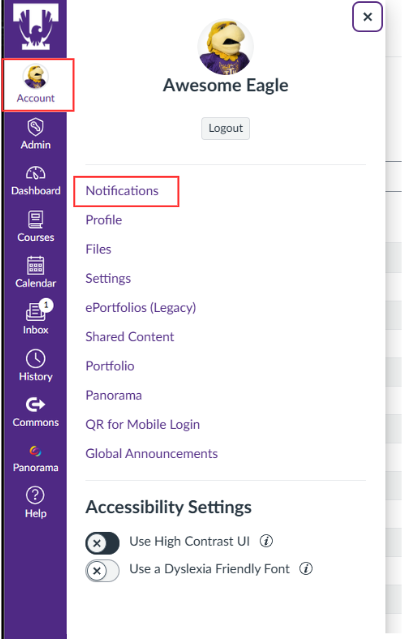
This new page will show you all the options and what has been selected for you. You can choose to apply the settings to all your courses (“setting for Account”), or you can select a course and apply specific settings to it.
For more information or a step-by-step guide with pictures and a video, visit the Infrastructure guide “How can I manage my Canvas notification settings?”
- How do I use Canvas on my phone?
Canvas Student Mobile App
You can download the Canvas App on your phone. Please visit Canvas-Student Resources on the CITL website for instructions on how to download the app.
You can also visit guides for Canvas on Android phones or the guides for Canvas on iOS phones for step-by-step instructions with pictures and videos.
- What if Canvas isn’t working?
Error Message
Refresh the page, clear your browser cache, try another browser, or use the mobile app. If the problem continues, contact the CITL for support.