

Navigate360 Student
Navigate360 Student is designed to help students stay connected, informed, and supported throughout their college journey as a Golden Eagle. From finding answers to common questions and connecting with classmates to accessing campus resources and requesting support, this platform brings important tools together in one convenient place.
Access Navigate360 Student and explore the features below to learn how this tool can help students navigate university life, stay on track, and make the most of their student experience.
How to Access Navigate360 Student
Note: Students must be a currently enrolled or admitted student to access Navigate360 Student. To login, use the same credentials as you would for your Tech domain account with TechExpress (campus portal) and your campus email.
Explore Features
-
- Appointment Scheduling (academic advisor, tutoring services, financial aid, Volpe Library Study Room, and more)
- Study Buddies
- Hand Raise
- Nav360 Guide (Your Personal Student Success Assistant)
- Staying Organized & Informed (Class Schedule, To Dos, Calendar, Advising Documents, and Notifications)
- Registration Holds Center with Resolution Guide
- On- and Off-Campus Student Resources & Success Team
- Major Explorer for Undergraduate Majors
Need additional help..? Review the Navigate360 Student Frequently Asked Questions (FAQs)
Start using Navigate360 Student
Get ready to make the most of your Tennessee Tech experience with Navigate360 Student! Download the app or access it online to connect with campus resources, stay organized, receive important reminders, and access personalized support from one convenient place designed to help you succeed.
- Download & Get Started
Currently enrolled or admitted students can download the mobile app on their Apple or Android device. Navigate360 Student is also available through TechExpress (campus portal) via QuickLinks (see link "Nav360Stu"). Review each option below to determine the best option for you to access Navigate360 Student.
Option 1: Mobile App
1. Download the mobile app


2. Open the app and search for "Tennessee Technological University"
3. Select “Login with your school account”
4. Follow the login instructions and use your Tennessee Tech domain account (e.g, AWEagle42@tntech.edu), password, and multifactor authenticator.
4a. For students who need assistance with their domain account username and password, please visit the ITS Self-Service Portal help article "Setting up your Tennessee Tech Account" - https://services.tntech.edu/TDClient/1878/Portal/KB/Article/111666/Setting-up-your-Tennessee-Tech-Account
Note: Students must be a current enrolled or admitted student to access Navigate360 Student. To login, use the same credentials as you would for your Tech domain account with TechExpress (campus portal) and your campus email.
Option 2: Access Web-based (Browser) Version via TechExpress (campus portal)
1. Visit https://express.tntech.edu
2. Follow the login instructions and use your Tennessee Tech domain account (e.g, AWEagle42@tntech.edu), password, and multifactor authenticator.
2a. For students who need assistance with their domain account username and password, please visit the ITS Self-Service Portal help article "Setting up your Tennessee Tech Account" - https://services.tntech.edu/TDClient/1878/Portal/KB/Article/111666/Setting-up-your-Tennessee-Tech-Account
3. In your QuickLinks section at the top, locate the "Nav360Stu" icon
 and select it.
4. Navigate360 Student will then open in a new window/tab within your browser.
Note: Students must be a current enrolled or admitted student to access Navigate360 Student. To login, use the same credentials as you would for your Tech domain account with TechExpress (campus portal) and your campus email.
Option 3: Access Web-based (Browser) Version
1. Visit https://techconnect.navigate.eab.com/
2. Locate the blue button "Login with your school account" and select it.
3. Follow the login instructions and use your Tennessee Tech domain account (e.g, AWEagle42@tntech.edu), password, and multifactor authenticator.
3a. For students who need assistance with their domain account username and password, please visit the ITS Self-Service Portal help article "Setting up your Tennessee Tech Account" - https://services.tntech.edu/TDClient/1878/Portal/KB/Article/111666/Setting-up-your-Tennessee-Tech-Account
Note: Students must be a current enrolled or admitted student to access Navigate360 Student. To login, use the same credentials as you would for your Tech domain account with TechExpress (campus portal) and your campus email. - Enabling Navigate360 Student Notifications
To get the most out of Navigate360 Student, be sure to enable notifications on your mobile device. Notifications can help you stay informed about appointment reminders, important deadlines, tasks, support opportunities, and other timely updates designed to keep you connected and on track.
TipEnabling notifications ensures you receive important reminders, updates, and time-sensitive information directly from Navigate360 Student, helping you stay organized and informed throughout the semester.
Configure Your Navigate360 Student Notifications
Use the following instructions to configure your Navigate360 Student Notification Settings.
Using the Mobile App
1. Open the Navigate360 Student app on your mobile device.
2. In the top left, tap on the contacts icon.
3. Next, choose "Account".
4. Then, choose "Notification Settings".
5. Toggle on the preferred method of notification (Push Notifications, Text Messages, or Email) for each item.
Note: You can select as many notification methods as desired, but you may receive multiple notifications if you choose more than one.
If you select the Text option, ensure that your mobile phone number is accurate on your student account in Eagle Online (for instructions, see Registrar's Office - Student Information Changes).
6. Select "Update Settings"
Using the Web-based (Browser) Version
1. Login to Navigate360 Student (Browser) either through TechExpress (campus portal) https://express.tntech.edu and choosing the "Nav360Stu" QuickLink icon or accessing the platform directly by visiting https://techconnect.navigate.eab.com.
2. Once logged in, in the top right select your initials and choose "Account".
3. Choose the link "Notification Settings"
4. Toggle on the preferred method of notification (Text Messages or Email) for each item.
Note: You can select as many notification methods as desired, but you receive multiple notifications if you choose more than one.
If you select the Text option, ensure that your mobile phone number is accurate on your student account in Eagle Online (for instructions, see Registrar's Office - Student Information Changes).
5. Select "Update Settings"
Enabling on your Apple (iPhone/iPad) Device
Use the following instructions to enable notifications on your Apple device.
1. Open the Settings app.
2. Select Notifications.
3. Scroll down and tap Navigate360 Student.
4. Turn on Allow Notifications.
5. Choose your preferred notification settings, such as Lock Screen, Notification Center, and Banners.
Don't have the mobile app downloaded from the Apple App Store?
Enabling on your Android Device
Use the following instructions to enable notifications on your Android device.
1. Open the Settings app.
2. Select Apps (or Apps & Notifications, depending on your device).
3. Tap Navigate360 Student.
4. Select Notifications.
5. Turn on Allow Notifications and customize your notification preferences as desired.
Don't have the mobile app downloaded from the Google Play Store?
Scheduling an Appointment through Navigate360 Student
Need to meet with an academic advisor, tutor, or other support staff? Need a study room in the Volpe Library? Navigate360 Student makes it easy to schedule appointments, view upcoming meetings, and connect with the people and services that can help you succeed.
Note: Appointments for the Center for Counseling and Mental Health Wellness and J.J. Oakley Health Services should be scheduled through the Eagle Wellness App. Regarding scheduling a meeting with your instructor, make sure to check your course syllabus to determine how they prefer for students to schedule or request meetings. Instructors' preferences for scheduling appointments do vary and may not include the use Navigate360 Student.
For a mental health emergency, please call the Eagle Eye Crisis Hotline at (931) 372-3331 or (855) 206-8997 if after hours or dial “988” for the Suicide and Crisis Lifeline. If this is an immediate emergency, please call “911” or University Police at (931) 372-3234.
- How do I schedule an appointment in Navigate360?
1. Login to Navigate360 Student
1a. If using Navigate360 Student mobile app... Once you login to Navigate360 Student, locate the the waffle icon to see available features and tools.
1b. If using Navigate360 web-based (browser)... Once you login to Navigate360 Student, locate the Appointments icon on the left-side navigation pane.
2. Select Appointments
3. Locate the blue button labeled "Make an Appointment" and select it.
4. Follow the onscreen instructions. They will guide you to choose the appropriate options regarding the type of appointment you would like to schedule.
4a. Using the dropdown options, you will select the Type of Appointment you would like to schedule (e.g., Advising*, Tutoring, etc).
4b. The screen will refresh to display the Service(s) available for the type of appointment selected.
4c. Then, choose a date you would like to try and schedule the appointment on.
*For Advising, ensure you select the type of advisor your college has assigned to you (e.g. Faculty Advisor or a Professional Advisor within your college's Student Success Center). If you are unsure, please visit the "How do I get Advised?" page for more information.
5. Select "Find Available Time".
6. The screen will refresh to provide you a few more options to choose from based on the service you are scheduling.
5a. Depending on the "Type of Appointment", you may see the option to choose a location. Ensure you review the information displayed for each location shown in case there are specific instructions or restrictions regarding the services available.
5b. You may also be able to select from a list of staff for your appointment.
5c. Based on the availability of the staff and service you selected, the date selected may not be available but you will be provided with a list of dates and times to choose from.
IMPORTANT: Please select the appointment service that best matches the assistance you need. Each service is connected to specific staff members, resources, and support areas. Choosing a service that does not align with your needs may result in delays, referrals to another office, or the need to schedule a different appointment.
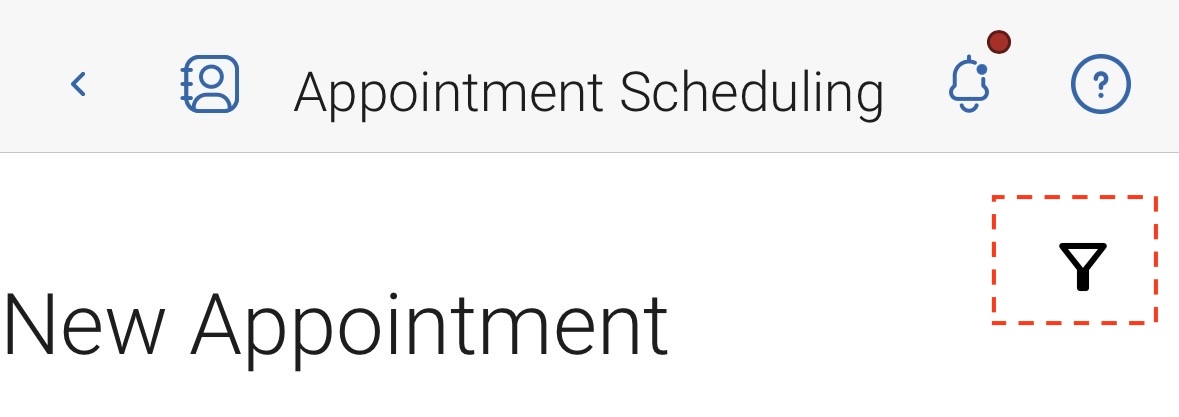
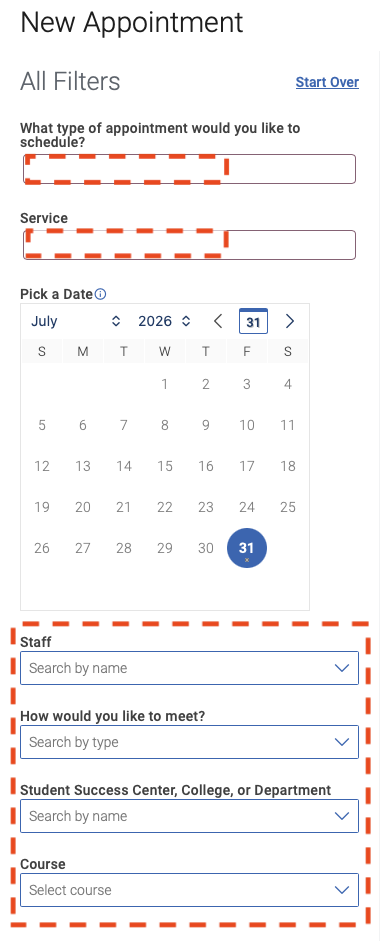
6. Next, you will be provided additional filter options. Continue to navigate the onscreen instructions to choose the appropriate options regarding the type of appointment you would like to schedule.
6a. You can use filters to narrow down days and times for specific types of appointments (e.g., in-person or virtual), staff, location, or if associated with a course. The page will refresh with the selection of any filter. Note: Not all filters may be applicable for some services and may need to be removed to see available appointment options.
Mobile
Web
Reminder: Based on the staff or service's availability, the date selected may not be available but you will be provided with a list of dates and times to choose from.
7. When ready, choose the time bubble within the date you would like to schedule your appointment or service.

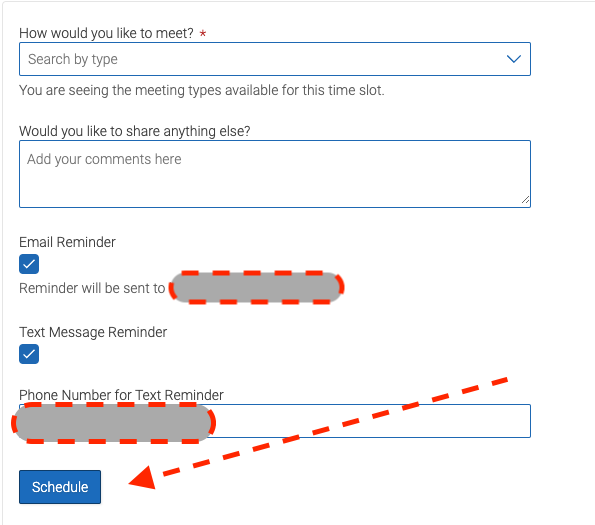
8. Next, you will you will see a summary of your appointment request along with any additional details regarding your appointment. IMPORTANT! Appointments are not confirmed until your select "Schedule" and receive confirmation of the booking.
8a. Ensure you review any information provided in the "Details" section as the faculty, staff, or service may have additional instructions regarding the appointment you are scheduling.
8b. You may also leave a comment for the staff or representative regarding your appointment. This allows you to expand on why you would like to meet and allows the staff/team member to prepare for any questions or concerns you may have.
8c. If available, some appointments may be available in-person or virtual. Any of these options will be displayed in the "How would you like to meet?" section before scheduling your appointment.
9. Then, select the "Schedule" button at the bottom once all of the required fields are completed.
IMPORTANT: You must click this button to continue booking your appointment/service.
10. Once you have successfully booked your appointment, you will receive an appointment confirmation, as well as, see an "Appointment Scheduled" message.
10a. You can always see any of your Navigate360 scheduled appointments by clicking on the Appointments icon within the Navigate360 Student app or when you're on your Student Home screen under the "Upcoming Appointments" section.
- How do I cancel a Navigate360 appointment?
Please try to keep your scheduled appointments whenever possible. However, we understand that schedules can change and occasional cancellations are sometimes necessary. If you can no longer attend your appointment, please cancel it as early as possible so another student has the opportunity to use that appointment time and staff can best support students seeking assistance.
To Cancel your Navigate360 Student appointment or service...
1. Login to Navigate360 Student
1a. If using Navigate360 Student mobile app... Once you login to Navigate360 Student, locate the the waffle icon to see available features and tools.
1b. If using Navigate360 web-based (browser)... Once you login to Navigate360 Student, locate the Appointments icon on the left-side navigation pane.
2. Select Appointments
3. In the Appointments section, ensure you have the "My Appointments" tab selected. Here you will see any upcoming appointments scheduled within Navigate360 Student.
4. Select the upcoming appointment or service you with to cancel.
5. At the bottom of the Appointment Details screen, there is a "Cancel Appointment" link.
6. Once you select this link, you will be asked to provide a "Reason" for canceling the appointment and allowed to leave any comments.
7. Select the blue "Cancel Appointment" button to cancel your appointment/service.
7a. Your appointment will not be cancelled until a Reason is provided and the "Cancel Appointment" button is selected.
To reschedule another appointment, please follow the instructions within the "How do I schedule an appointment in Navigate360?" section above.
- How do I reserve a Volpe Library Study Room?
Volpe Library Study Room reservations are configured similar to appointment scheduling within Navigate360 Student with some slight differences. The steps below will help you with making a Volpe Library Study Room reservation.
1. Login to Navigate360 Student
1a. If using Navigate360 Student mobile app... Once you login to Navigate360 Student, locate the the waffle icon to see available features and tools.
1b. If using Navigate360 web-based (browser)... Once you login to Navigate360 Student, locate the Appointments icon on the left-side navigation pane.
2. Select Appointments
3. Locate the blue button labeled "Make an Appointment" and select it.
4. Follow the onscreen instructions. They will guide you to choose the appropriate options regarding the type of appointment you would like to schedule.
4a. Using the dropdown options, you will select the "What type of appointment would you like to schedule?" to be Volpe Library.
4b. The screen will refresh to display the Service(s) available for the type of appointment selected. Now, you will select Reserve a Library Study Room.
4c. Then, choose a date you would like to try and schedule the appointment on. Note: Volpe Library Study Room bookings may be made up to 7 days in advance.
5. Select "Find Available Time".
6. The screen will refresh to provide you a list of available days and times Volpe Library Study Rooms are currently available. Note: Study rooms can only be accessed while the library is open. View the Volpe Library hours and holiday schedules at Library Hours - https://www.tntech.edu/library/hours.php.
Reminder: Based on space availability, the date selected may not be available but you will be provided with a list of dates and times to choose from.
7. When ready, choose the time bubble within the date you would like to reserve your Volpe Library Study Room.
8. Next, you will you will see a summary of your request along with any additional details regarding the reservation of the space. IMPORTANT! Volpe Library Study Rooms are not confirmed until your select "Schedule" and receive confirmation of the booking.
8a. Ensure you review any information provided in the "Details" section.
8b. The "Staff" section will display the Volpe Library Study Room you're requesting to reserve for the day and time listed.
8c. The "How Would you like to meet?" will default to the LIBR Study Room Reservation text as there is no other option available for this type of request.
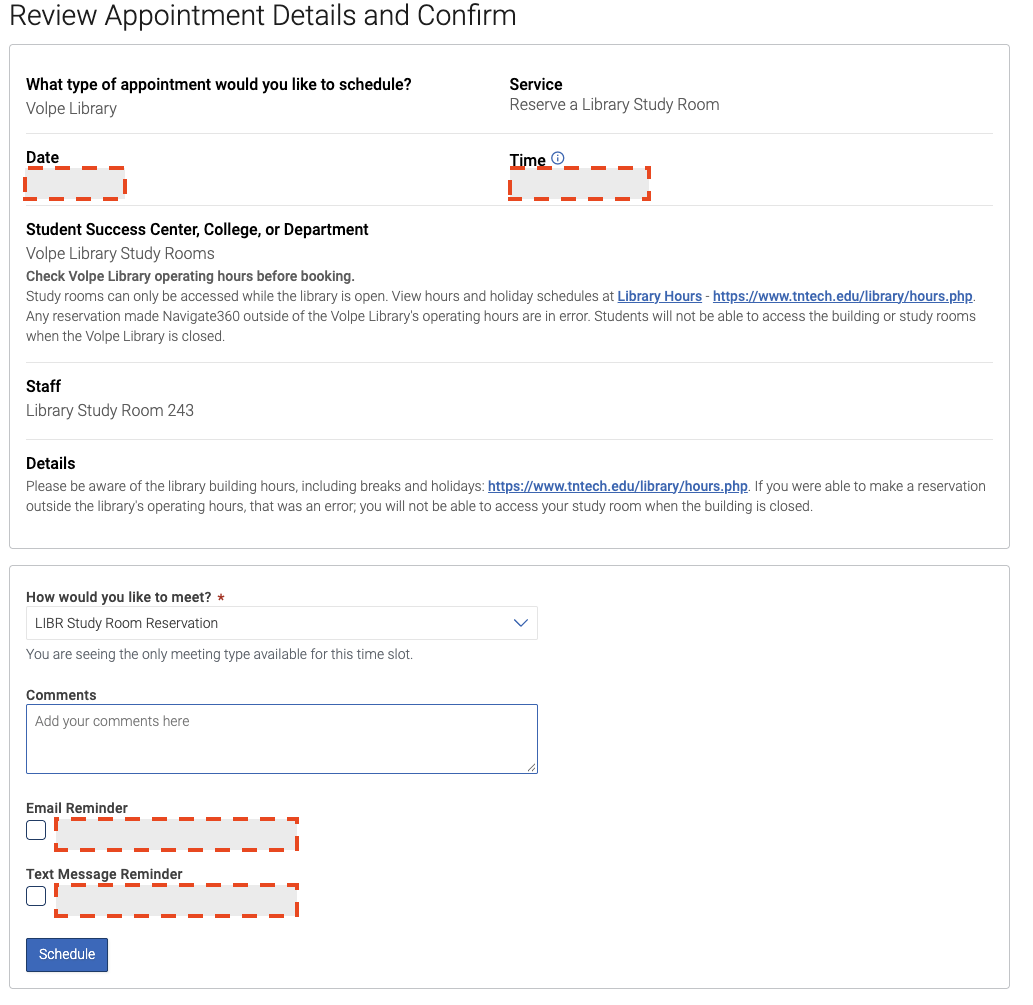
9. Then, select the "Schedule" button at the bottom once all of the fields have been reviewed.
IMPORTANT: You must click this button to continue booking your appointment/service.
10. Once you have successfully booked your Volpe Library Study Room, you will receive an appointment confirmation, as well as, see an "Appointment Scheduled" message.
10a. You can always see any of your Navigate360 reserved Volpe Library Study Rooms by clicking on the Appointments icon within the Navigate360 Student app.
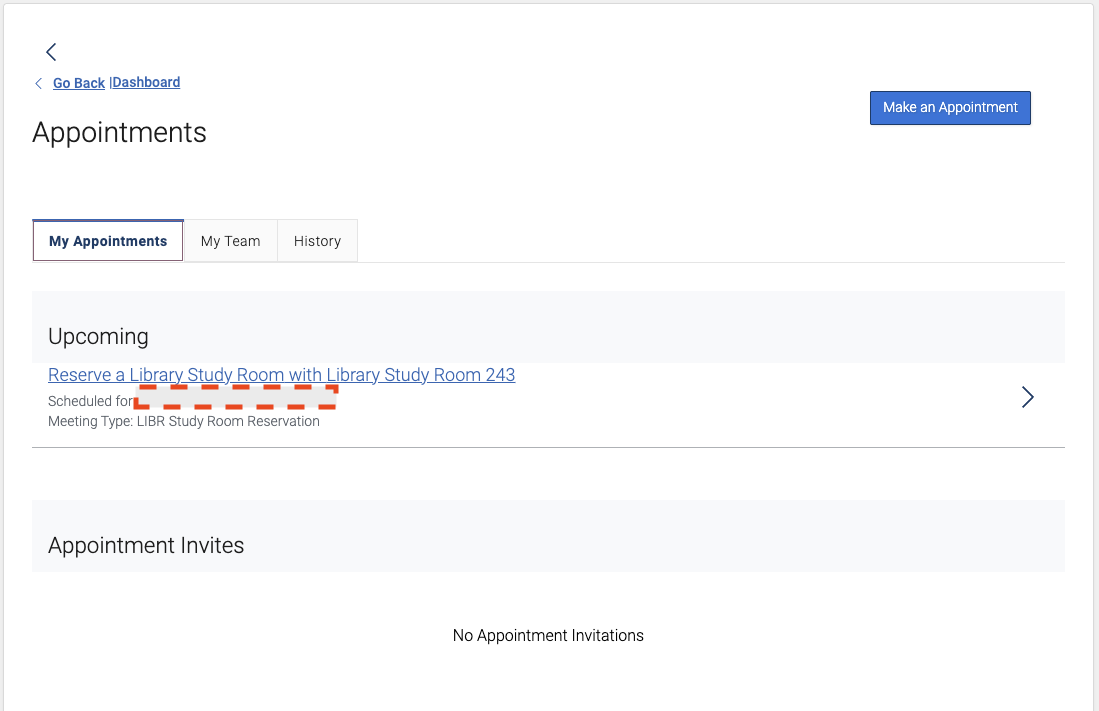
11. When you arrive in the Volpe Library, you may go to the study room you've booked. Reminder: The room number is within your confirmation.
11a. If a student group is already in the study room, you may wait until they finish up their reserved time. If necessary, you may speak with a member of the Volpe Library staff located at the Front Desk on the 2nd floor of the Volpe Library Learning Commons for further assistance.
- How do I cancel my Volpe Library Study Room reservation?
Please try to keep your Volpe Library Study Room reservations whenever possible. However, we understand that schedules can change and occasional cancellations are sometimes necessary. If you can no longer keep your Study Room reservation, please cancel it as early as possible so another student has the opportunity to use the space.
To Cancel your Volpe Library Study Room reservation (appointment)...
1. Login to Navigate360 Student
1a. If using Navigate360 Student mobile app... Once you login to Navigate360 Student, locate the the waffle icon to see available features and tools.
1b. If using Navigate360 web-based (browser)... Once you login to Navigate360 Student, locate the Appointments icon on the left-side navigation pane.
2. Select Appointments
3. In the Appointments section, ensure you have the "My Appointments" tab selected. Here you will see any upcoming appointments and Volpe Library Study Room reservations you have scheduled within Navigate360 Student.
4. Select the upcoming reservation you want to cancel.
5. At the bottom of the Appointment Details screen, there is a "Cancel Appointment" link.
6. Once you select this link, you will be asked to provide a "Reason" for canceling the reservation and allowed to leave any comments.
7. Select the "Cancel Appointment" button to cancel your appointment/service.
7a. Your appointment will not be cancelled until a Reason is provided and the "Cancel Appointment" button is selected.
To reschedule another Volpe Library Study Room reservation, please follow the instructions within the "How do I reserve a Volpe Library Study Room?" section above.
Study Buddies
Study Buddies is a feature within the Navigate360 Student mobile app and desktop site that allows you to opt-in to connect with students in each of your classes who are interested in forming study groups.
- How to use Study Buddies
1. Login to Navigate360 Student
1a. If using Navigate360 Student mobile app... Once you login to Navigate360 Student, locate the the waffle icon to see available features and tools.
1b. If using Navigate360 web-based (browser)... Once you login to Navigate360 Student, locate the Study Buddies icon on the left-side navigation pane.
2. Select Study Buddies
3. You will then see a list of classes you are enrolled in for the current semester.
4. Choose the section you would like to join a Study Buddies group.
You will be prompted to confirm sharing your Tennessee Tech email with your classmates who also opt in.
5. Repeat Steps 3-4 for other courses you would like to opt in for Study Buddies.
Things to know...
-
-
If you’re the first to opt in, you’ll see “Only Me.” As your classmates opt in, their email addresses will appear in the list. You can select and email any of them, or use the search bar to find specific classmates.
-
Select your classmates, and your email app will open with a pre-filled message you can edit as needed.
-
You can leave a study group anytime by selecting “Leave Group.” Confirm “Yes,” and you’ll be removed from that course’s Study Buddies list.
-
-
- I "Opted In" to Study Buddies, what's next?
Study Buddies matches may not be available immediately. Because participation is optional, the number of available matches depends on how many students in your course choose to opt in. We encourage you to be patient and revisit the feature as additional students join over time.
Once other classmates opt in to Study Buddies for a course, we encourage the following:
Connect with Your Classmates
Introduce yourself and start building relationships with classmates who have opted in to Study Buddies.Establish Group Expectations
Discuss meeting frequency, communication preferences, and how you'll collaborate and share resources.Be an Active Participant
Stay engaged by preparing for meetings, sharing insights, asking questions, and contributing to discussions.Stay Focused and Respectful
Set clear goals for each session, make the most of your time together, and respect the schedules and perspectives of your fellow students.
Hand Raise
College can be challenging, and you don't have to navigate it alone. Hand Raise allows you to request assistance from university staff or campus resources by sharing concerns or challenges you may be experiencing. This will help connect you to support when you need it.
For a mental health emergency, please call the Eagle Eye Crisis Hotline at (931) 372-3331 or (855) 206-8997 if after hours or dial “988” for the Suicide and Crisis Lifeline. If you are in an immediate emergency, please call “911” or University Police at (931) 372-3234.
- How to use Hand Raise
1. Login to Navigate360 Student
1a. If using Navigate360 Student mobile app... Once you login to Navigate360 Student, locate the the waffle icon to see available features and tools.
1b. If using Navigate360 web-based (browser)... Once you login to Navigate360 Student, locate the Hand Raise icon on the left-side navigation pane.
2. Select Hand Raise
3. In the Hand Raise section, select "Create a Hand Raise".
3a. You will then provide additional information regarding your concern or the challenge you are experiencing.
4. Choose the reason from the dropdown that best describes your concern.
5. Next, indicate if the concern is related to a course.
6. Add any comments that may be helpful.
6a. Providing additional details can help university staff better understand your needs and respond more effectively based on the reason you selected. However, you should only share information you are comfortable discussing.
7. Submitting your Hand Raise
7a. If using the mobile app, select "Hand Raise"
7b. If using the web version, select "Submit"
Note: Depending on the reason selected, it may be up to 2 business days before a response is provided. If the University is closed, please refer to Resources section within Navigate360 Student.
Nav360 Guide (Your Personal Student Success Assistant)
Nav360 Guide is an AI-powered assistant designed to help you navigate your Tennessee Tech experience. By combining university information with relevant details about your student experience, Nav360 Guide can provide personalized answers, recommend helpful resources, and connect you with the support and staff you need to succeed. Additionally, Nav360 Guide supports conversations in other languages.
For a mental health emergency, please call the Eagle Eye Crisis Hotline at (931) 372-3331 or (855) 206-8997 if after hours or dial “988” for the Suicide and Crisis Lifeline. If this is an immediate emergency, please call “911” or University Police at (931) 372-3234.
- How to use Nav360 Guide
1. Login to Navigate360 Student
1a. If using Navigate360 Student mobile app... Once you login to Navigate360 Student, locate the the waffle icon to see available features and tools.
1b. If using Navigate360 web-based (browser)... Once you login to Navigate360 Student, locate the Nav360 Guide icon on the left-side navigation pane.
2. Select Nav360 Guide
3. Once you open Nav360 Guide, you can begin entering questions related to your Tennessee Tech experience.
3a. For best results, be as specific as possible so Nav360 Guide can provide personalized guidance, relevant information, and connections to campus resources.
3b. If prompted, please let us know if the response did not answer your question. Student feedback helps us refine the information provided, improve response quality, and ensure Nav360 Guide continues to meet the needs of Tennessee Tech students.
- How do I begin a conversing in a different language?
Nav360 Guide supports conversations in other languages.
When students begin conversing in a different supported language, Nav360 Guide will continue the conversation in that language. A list of supported languages is provided below.
As of July 2025, the list of supported languages are Afrikaans, Arabic, Armenian, Azerbaijani, Belarusian, Bosnian, Bulgarian, Catalan, Chinese, Croatian, Czech, Danish, Dutch, English, Estonian, Finnish, French, Galician, German, Greek, Hebrew, Hindi, Hungarian, Icelandic, Indonesian, Italian, Japanese, Kannada, Kazakh, Korean, Latvian, Lithuanian, Macedonian, Malay, Marathi, Maori, Nepali, Norwegian, Persian, Polish, Portuguese, Romanian, Russian, Serbian, Slovak, Slovenian, Spanish, Swahili, Swedish, Tagalog, Tamil, Thai, Turkish, Ukrainian, Urdu, Vietnamese, and Welsh.
Staying Organized & Informed (Class Schedule, To-Do's, Calendar, and more)
Navigate360 Student helps you keep important information in one convenient place so you can stay on top of your academic journey. View your class schedule, track to-do items, access advising documents, and stay informed with reminders and notifications tailored to your student experience. The integrated calendar helps you keep track of important dates, appointments, and upcoming events, making it easier to stay organized throughout the semester. Whether you're planning ahead or checking what's next, these tools can help you stay connected and on track toward your goals.
- How to View my Class Schedule
Navigate360 Student's Class Schedule feature allows students to see their enrolled courses for the current term along with additional information regarding the course including the instructor, meeting schedule, location, course description, and other important course information.
1. Login to Navigate360 Student
1a. If using Navigate360 Student mobile app... Once you login to Navigate360 Student, locate the the waffle icon to see available features and tools.
1b. If using Navigate360 web-based (browser)... Once you login to Navigate360 Student, locate the Class Schedule icon on the left-side navigation pane.
2. Select Class Schedule to see all of the courses you are enrolled in for the current term.
2a. You will have the option to display your enrolled courses in either "List View" or "Schedule View".
Please Note: Only courses from the current academic term are displayed in Navigate360 Student's Calendar. If you are enrolled in a future term but not the current term, your courses will become visible when that term begins.
3. You can click on each Course to see more information regarding the enrolled course. Select a course to view additional details, including the instructor, meeting schedule, location, course description, and other important course information.
Note: Don't be alarmed if you see an "Accelerated Course" label. It simply means the course meets for a shorter period of time than a typical semester-long class, so you may complete assignments and course activities on a more condensed schedule. Make sure you review your Course Syllabus for deadlines and due dates.
4. For Navigate360 Student mobile app users... If you would like to to add your Course Schedule to your mobile device's default calendar, use the "..." located on the List View option and choose between the "Add to Calendar" or "Manage Calendar Auto Sync".
If you have made changes to your course schedule and it is not updated within 2 business days in Navigate360 student, please email Navigate@tntech.edu and include any details regarding the incorrect course(s).
- My Calendar
Navigate360 Student's Calendar tool allows students to see key student success events, Navigate360 appointments, important dates, deadlines, and add personalized reminders in one location.
1. Login to Navigate360 Student
1a. If using Navigate360 Student mobile app... Once you login to Navigate360 Student, locate the the waffle icon to see available features and tools.
1b. If using Navigate360 web-based (browser)... Once you login to Navigate360 Student, locate the Calendar icon on the left-side navigation pane.
2. Select Calendar to see current events
2a. When you open the Calendar feature on the mobile app, you have the option for a list view and Calendar View. The Calendar View gives you the option to view 1 week, 3, days, or 1 day. You may also use the "Filter" option to view items by topics and date range.
2b. When you open the Calendar feature on the web-based (browser) version, a month calendar displays. You can then change the view to Week, Day, or List. You may also use the "Filter" option to view items by topics.
3. If you select an event from Calendar, then it will open the appropriate details screen in the app.
- Monitoring To-Do's and Checklist Items
Using Navigate360 Student's Checklist feature provides students the ability to view any staff/advisor assigned or personally created To-Do's or events.
1. Login to Navigate360 Student
1a. If using Navigate360 Student mobile app... Once you login to Navigate360 Student, locate the the waffle icon to see available features and tools.
1b. If using Navigate360 web-based (browser)... Once you login to Navigate360 Student, locate the Checklist icon on the left-side navigation pane.
2. Select Checklist to see current items assigned to you. Items are sorted based on due date with the closest upcoming deadline shown first. Then, any flagged items will display next. Finally, items without a due date will display last on the checklist.
2a. If you select an item from your Checklist, then you will see more information regarding the item/to-do.
2b. You can filter your checklist by category or status. You can also change the sort on your items. Your choices will persist if you open an item and then return to the main Checklist.
2c. Tips are pieces of advice or suggestions on the best ways to reach graduation.
3. While within the Checklist feature, you can select "Add Personal To-Do".
4. In the "Add Personal To-Do" section, complete the required fields.
4a. For section "All Day", "True" will show the item for the entire day, while "False" gives you the ability to put in a Time.
4b. Once you've added your information for your Personal To-Do, select "Save Personal To-Do".
- Accessing Documents shared within Navigate360 Student
My Docs lets students see Appointment Summaries, Notes, and Progress Reports. This may include academic advisement notes and documents shared by your academic advisor. Important: TechConnect/Navigate360 Student Success Notes shared since May 1,2025 are available in the Navigate360 Student app's "My Docs" section. For any documentation prior to this date, please contact the individual (i.e., academic advisor) to request a copy.
1. Login to Navigate360 Student
1a. If using Navigate360 Student mobile app... Once you login to Navigate360 Student, locate the the waffle icon to see available features and tools.
1b. If using Navigate360 web-based (browser)... Once you login to Navigate360 Student, locate the My Docs icon on the left-side navigation pane.
2. Select My Docs to see resources or information made available to you through Navigate360 Student.
3. You can navigate to each section to see what information has been shared by university staff or services you have participated using Navigate360 Student.
3a. It is important to know that Docs (including academic advising notes) must be shared by faculty and staff for them to be visible in the Navigate360 Student app. If you do not see any documents or Notes, then they may not have been entered or provided within Navigate360 Student Success.
- View my Course Attendance and Midterm Grades Reported
1. Login to Navigate360 Student
1a. If using Navigate360 Student mobile app... Once you login to Navigate360 Student, locate the the waffle icon to see available features and tools.
1b. If using Navigate360 web-based (browser)... Once you login to Navigate360 Student, locate the Attendance/Midterm Grades icon on the left-side navigation pane.
2. Select Attendance/Midterm Grades to see resources or information made available to you through Navigate360 Student.
2a. Note: If using the mobile app, this link will open in your mobile device's default browser and prompt you to login using your Tennessee Tech domain credentials (this would be the username and password used for accessing TechExpress (campus portal).
3. On the "Courses" tab, you will see your current number of reported absences and your midterm grades for each of the courses you are enrolled.
3a. Important: Not all instructors may report midterm grades. However, for those that do, you can monitor midterm grade submissions by returning to Navigate360 Student during the midterm grading period for the semester to see if additional midterm grades have been posted (see: TN Tech's Academic Calendarfor the midterm grading dates).
3b. Attendance tracked and reported using Navigate360 Student Success and TechExpress (campus portal) is available for viewing within Navigate360 Student. Currently, attendance tracked by instructors using Canvas is not visible in Navigate360 Student. If your instructor is using Canvas to tracking your attendance, please login to the Canvas platform and access your Gradebook.
- Enabling Navigate360 Student Notifications
To get the most out of Navigate360 Student, be sure to enable notifications on your mobile device. Notifications can help you stay informed about appointment reminders, important deadlines, tasks, support opportunities, and other timely updates designed to keep you connected and on track.
TipEnabling notifications ensures you receive important reminders, updates, and time-sensitive information directly from Navigate360 Student, helping you stay organized and informed throughout the semester.
Configure Your Navigate360 Student Notifications
Use the following instructions to configure your Navigate360 Student Notification Settings.
Using the Mobile App
1. Open the Navigate360 Student app on your mobile device.
2. In the top left, tap on the contacts icon.
3. Next, choose "Account".
4. Then, choose "Notification Settings".
5. Toggle on the preferred method of notification (Push Notifications, Text Messages, or Email) for each item.
Note: You can select as many notification methods as desired, but you may receive multiple notifications if you choose more than one.
If you select the Text option, ensure that your mobile phone number is accurate on your student account in Eagle Online (for instructions, see Registrar's Office - Student Information Changes).
6. Select "Update Settings"
Using the Web-based (Browser) Version
1. Login to Navigate360 Student (Browser) either through TechExpress (campus portal) https://express.tntech.edu and choosing the "Nav360Stu" QuickLink icon or accessing the platform directly by visiting https://techconnect.navigate.eab.com.
2. Once logged in, in the top right select your initials and choose "Account".
3. Choose the link "Notification Settings"
4. Toggle on the preferred method of notification (Text Messages or Email) for each item.
Note: You can select as many notification methods as desired, but you receive multiple notifications if you choose more than one.
If you select the Text option, ensure that your mobile phone number is accurate on your student account in Eagle Online (for instructions, see Registrar's Office - Student Information Changes).
5. Select "Update Settings"
Enabling on your Apple (iPhone/iPad) Device
Use the following instructions to enable notifications on your Apple device.
1. Open the Settings app.
2. Select Notifications.
3. Scroll down and tap Navigate360 Student.
4. Turn on Allow Notifications.
5. Choose your preferred notification settings, such as Lock Screen, Notification Center, and Banners.
Don't have the mobile app downloaded from the Apple App Store?
Enabling on your Android Device
Use the following instructions to enable notifications on your Android device.
1. Open the Settings app.
2. Select Apps (or Apps & Notifications, depending on your device).
3. Tap Navigate360 Student.
4. Select Notifications.
5. Turn on Allow Notifications and customize your notification preferences as desired.
Don't have the mobile app downloaded from the Google Play Store?
Registration Holds Center with Resolution Guide
The Holds Center helps you stay informed about any registration holds that may affect your student account and provides clear information about what each hold means. When a hold is identified, you'll find guidance, action steps, and helpful resources to help you understand and resolve the issue as quickly as possible.
- How do I find my Holds?
1. Login to Navigate360 Student
1a. If using Navigate360 Student mobile app... Once you login to Navigate360 Student, locate the the waffle icon to see available features and tools.
1b. If using Navigate360 web-based (browser)... Once you login to Navigate360 Student, locate the Holds icon on the left-side navigation pane.
2. Select Holds to view current holds on your student account
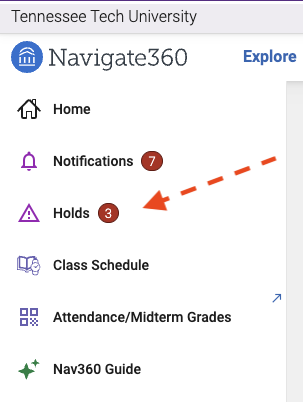
Note: If you have any Registration Holds on your account, then you will see a red number on the Holds icon.
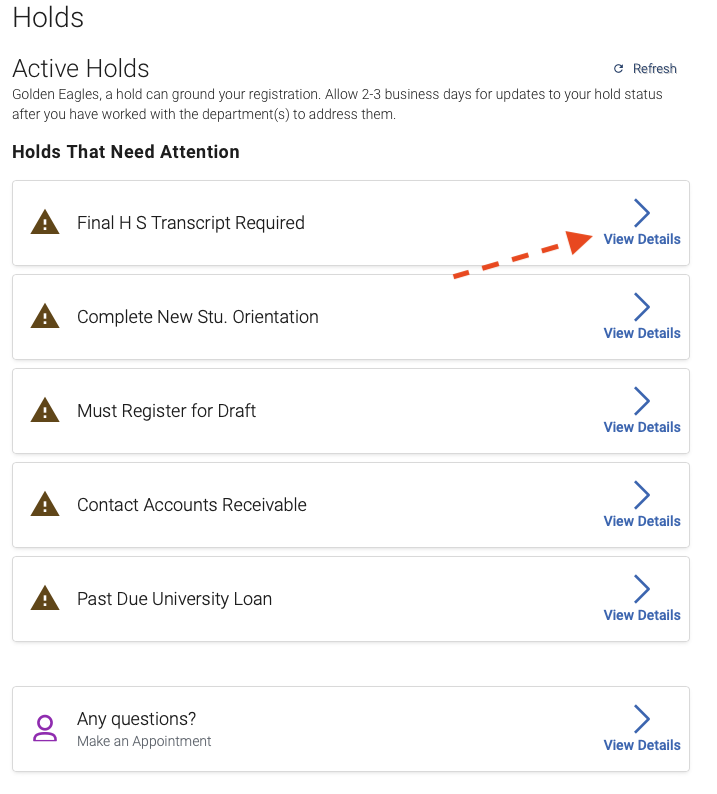
3. The Holds screen will list all holds you currently have on your account.
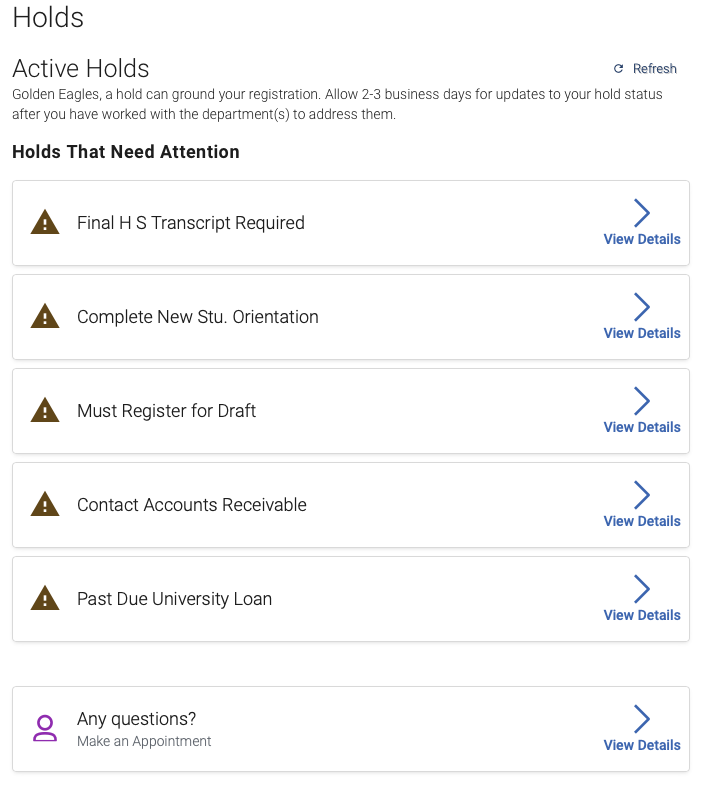
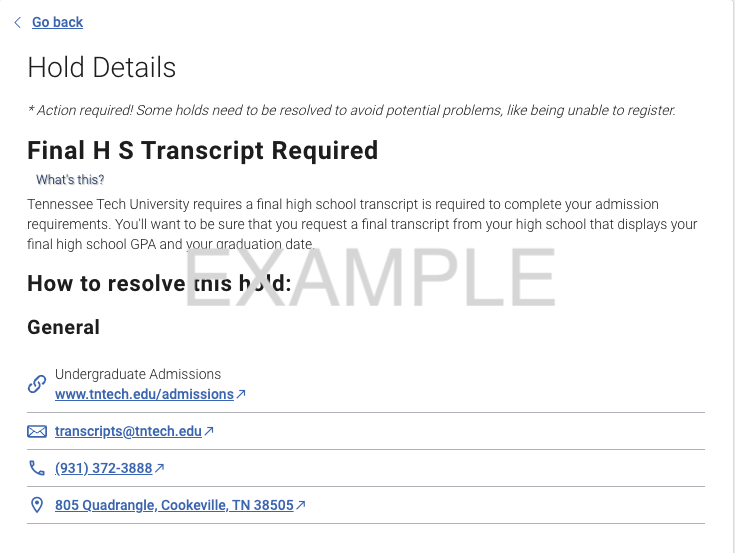
4. When you select "View Details", then you'll be able to see more information about the hold, steps to take to resolve it, and which department to contact for more questions.
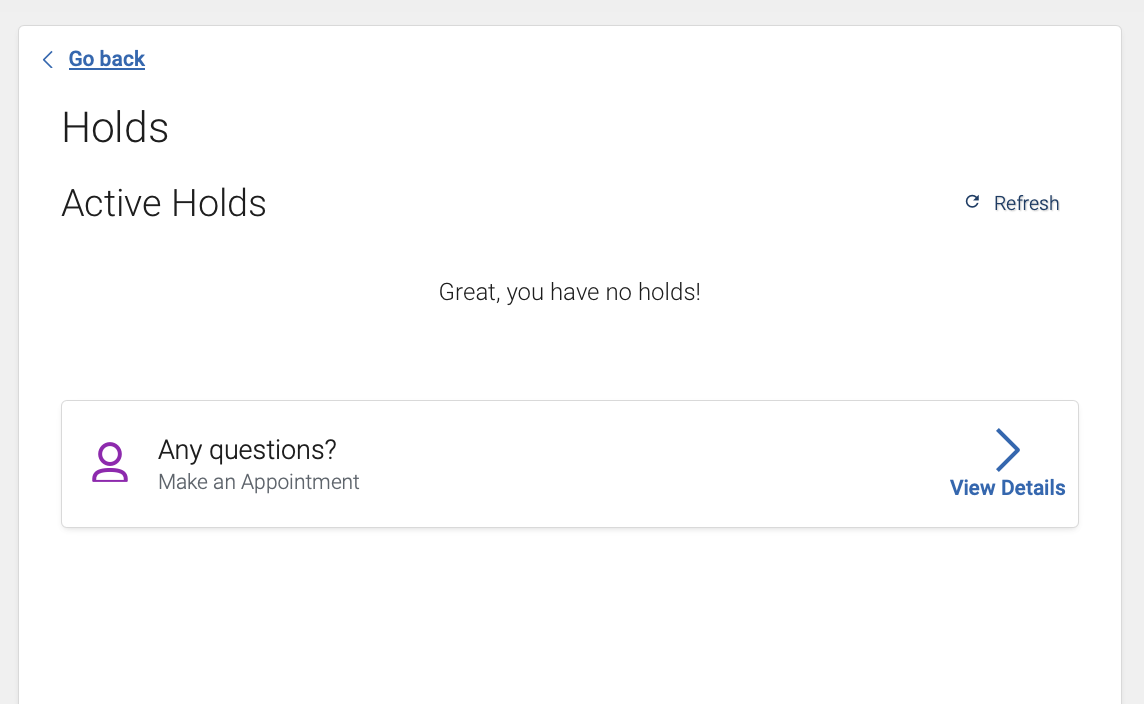
5. If you do not have any registration holds on your student account, then you will see a message similar to the one below.
On- and Off-Campus Student Resources & Success Team
The Resources feature helps you discover the people, services, and tools available to support your success at Tennessee Tech. Browse a directory of on- and off-campus resources, explore both in-person and online support options, and connect with services designed to help you thrive academically and personally. You'll also find your Student Success Network, which is a personalized list of advisors, faculty, coaches, and other university staff who are available to support you throughout your Tennessee Tech journey.
- How to access Resources
1. Login to Navigate360 Student
1a. If using Navigate360 Student mobile app... Once you login to Navigate360 Student, locate the the waffle icon to see available features and tools.
1b. If using Navigate360 web-based (browser)... Once you login to Navigate360 Student, locate the Resources icon on the left-side navigation pane.
2. Select Resources
3. You can then explore Resources by two options: "Places" and "People"
4. To browse the directory of on- and off-campus resources, select "Places".
4a. "Places" are organized into categories based on common student needs and services. "Places" may include both physical or digital services and resources. Students may also choose to Favorite resources by selecting the heart icon in the top left of each Resources item. Items that are hearted are saved in your Favorites section of Navigate360 Student.
- How to access your Student Success Team/Student Success Network
1. Login to Navigate360 Student
1a. If using Navigate360 Student mobile app... Once you login to Navigate360 Student, locate the the waffle icon to see available features and tools.
1b. If using Navigate360 web-based (browser)... Once you login to Navigate360 Student, locate the Resources icon on the left-side navigation pane.
2. Select Resources
3. Then, select People
4. Here, you will see university staff and/or faculty assigned to you in one or more roles.
4a. Roles may include Academic Advisor(s), Instructors, Faculty Mentor, Hall Director (if living on campus), First-Generation Student Success, Flight Path (if first-year freshman), Coaches (if Student Athlete), Tutors, Success Coach, etc.
5. You can then click on each title to see more information regarding the individual listed, plus their contact information and if they have the ability to schedule an appointment using Navigate360 Student.
Major Explorer for Undergraduate Majors
Not sure if you're in the right major? Major Explorer helps you discover undergraduate majors that may be a good fit based on your interests, preferences, and goals. You'll also be able to explore career information and opportunities associated with different fields of study as you consider your academic and career path.
- Learn more about Major Explorer
Major Explorer provides you with several different components, including a searchable list of current Tennessee Tech undergraduate majors and both career and salary data.
1. Login to Navigate360 Student
1a. If using Navigate360 Student mobile app... Once you login to Navigate360 Student, locate the the waffle icon to see available features and tools.
1b. If using Navigate360 web-based (browser)... Once you login to Navigate360 Student, locate the Major Explorer icon on the left-side navigation pane.
2. Select Major Explorer
3. Next, select "Take the Major Explorer survey". No worries, this is a very short assessment (6 brief, multiple choice sections) designed to help you explore your interests and compare against majors and careers.
4. Once you get to Step 6, you will be provided a list of majors. You can select "View More Details" to view a list of Top Career Suggestions. Selecting "Show More" then allows you to see top skills needed and what employers look for within each career option shown.
5. If you need to change your major or discuss further career opportunities, use Navigate360 Student to schedule an appointment with your academic advisor or visit Tech's Center for Career Development to speak with a career professional.